

A reverse proxy with automatic HTTPS using Caddy: many apps, one file
Publish several apps on one server under their own domains; Caddy obtains and renews the certificates automatically.
Tutorials · 3 min read

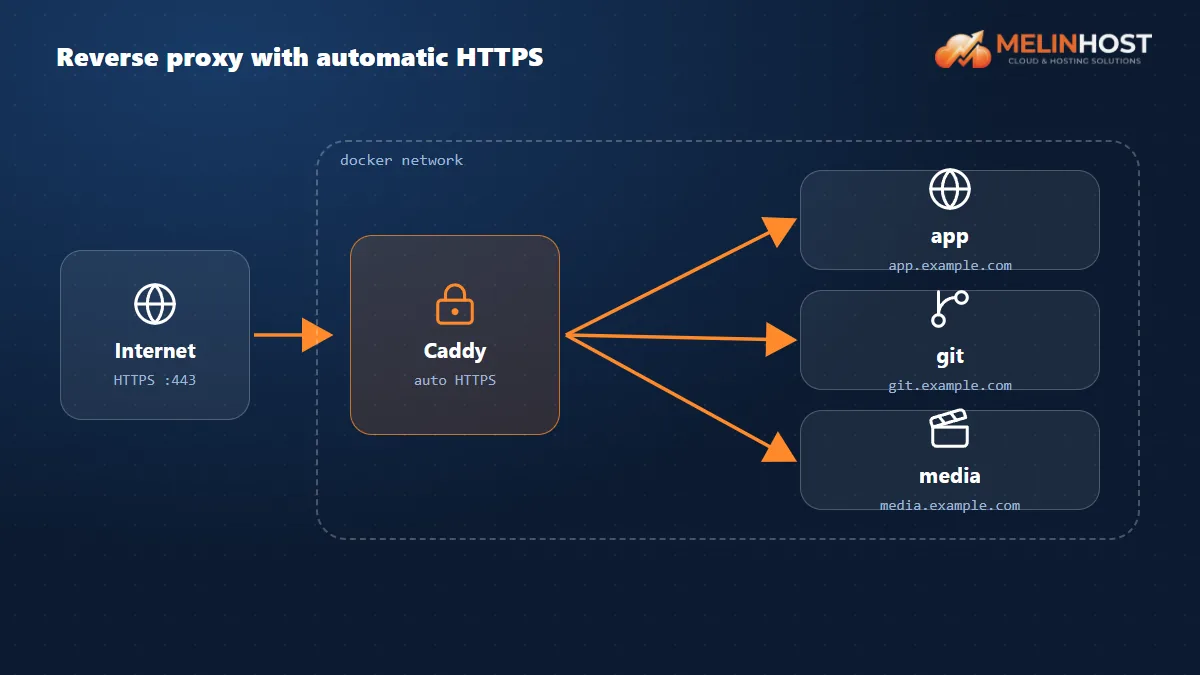
If you run several web applications on one server, a reverse proxy publishes them all on ports 80 and 443 and routes by domain name. Caddy does this with one short file and obtains and renews HTTPS certificates by itself.
Prerequisites
- Docker and Compose (see Installing Docker).
- A domain or subdomain for each application, with an A record pointing at the server IP (see DNS records).
- Ports 80 and 443 open in the firewall:
sudo ufw allow 80,443/tcp
1. The Compose file
When Caddy and the applications are in the same Compose project they reach each other by service name; you don’t need to publish the applications’ ports outside.
services:
  caddy:
    image: caddy:2
    restart: unless-stopped
    ports:
      - "80:80"
      - "443:443"
      - "443:443/udp"
    volumes:
      - ./Caddyfile:/etc/caddy/Caddyfile
      - caddy_data:/data
      - caddy_config:/config

  app:
    image: traefik/whoami
    restart: unless-stopped

volumes:
  caddy_data:
  caddy_config:
2. The Caddyfile
app.yourdomain.com {
    reverse_proxy app:80
}

# the same pattern for a second app:
# git.yourdomain.com {
#     reverse_proxy gitea:3000
# }
Each block is a domain name and the reverse_proxy target is a container name and port on the same network.
3. Start it
docker compose up -d
docker compose logs -f caddy
Caddy obtains the certificate automatically on the first request (Let’s Encrypt); the log shows “certificate obtained successfully”. Open https://app.yourdomain.com in your browser.
Adding a new application
- Add the application’s service to the Compose file (no need to publish a port on the host).
- Add a new domain block to the Caddyfile.
- Reload the configuration:
docker compose exec caddy caddy reload --config /etc/caddy/Caddyfile
If the application is outside your Compose project, create a shared Docker network and attach both Caddy and the application to it (docker network create proxy and networks: [proxy] on each service).
Useful additions
| Need | Caddyfile |
|---|---|
Redirect www to the apex domain | www.yourdomain.com { redir https://yourdomain.com{uri} } |
| Compression | encode zstd gzip |
| Basic authentication | basicauth (with a bcrypt hash) |
| Specific IPs only | match with @allowed remote_ip 203.0.113.0/24 |
Troubleshooting
- Certificate could not be obtained: make sure the A record is right and ports 80/443 are open (see DNS change not showing).
- 502 Bad Gateway: the target container isn’t running or the name/port is wrong: check
docker compose psand thereverse_proxytarget. - Limits: Let’s Encrypt has certificate issuance rate limits; don’t repeatedly remove and re-add a domain while experimenting.
Start with Melinhost
For several applications, a cloud server with 4 vCPU and 8 GB RAM is a comfortable start.


