

Opening and following a support ticket, and live chat
Open a ticket with the right department and details, follow the replies and get quick help from live chat or the assistant.
Support and safety · 2 min read
If you can’t find what you need in the knowledge base, or if we have to solve something together, open a ticket with our support team. All your tickets are collected under Support › Support tickets.
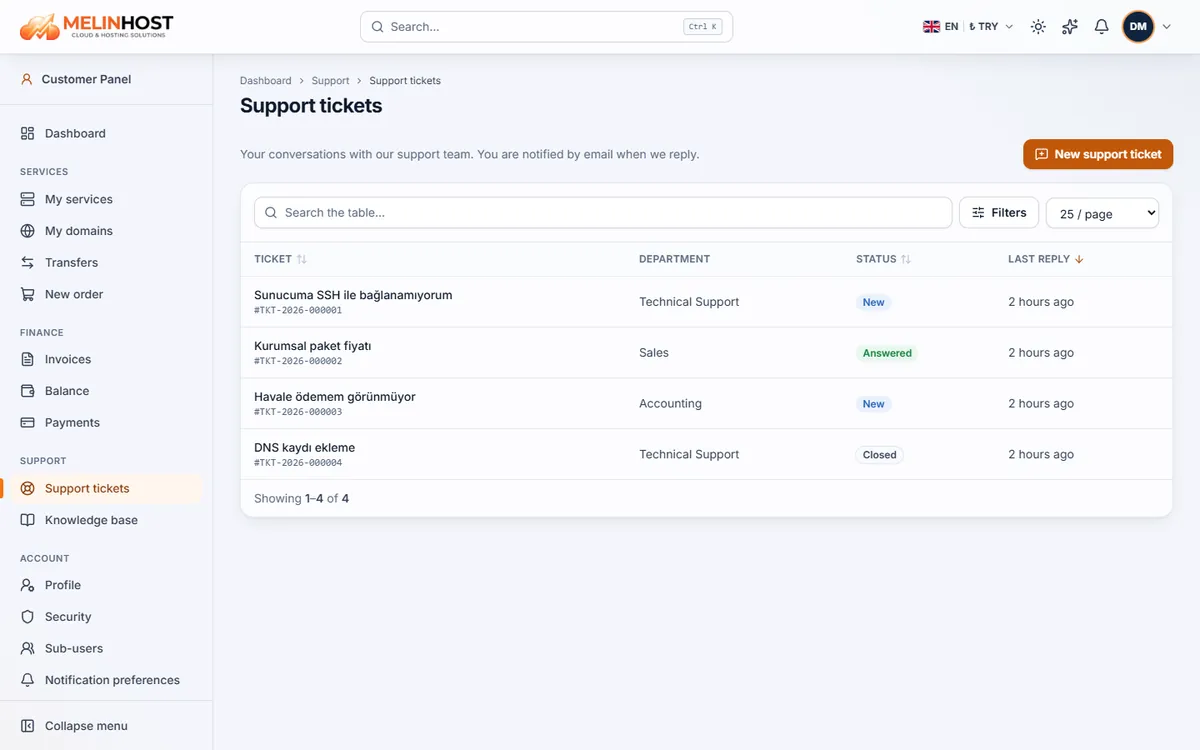
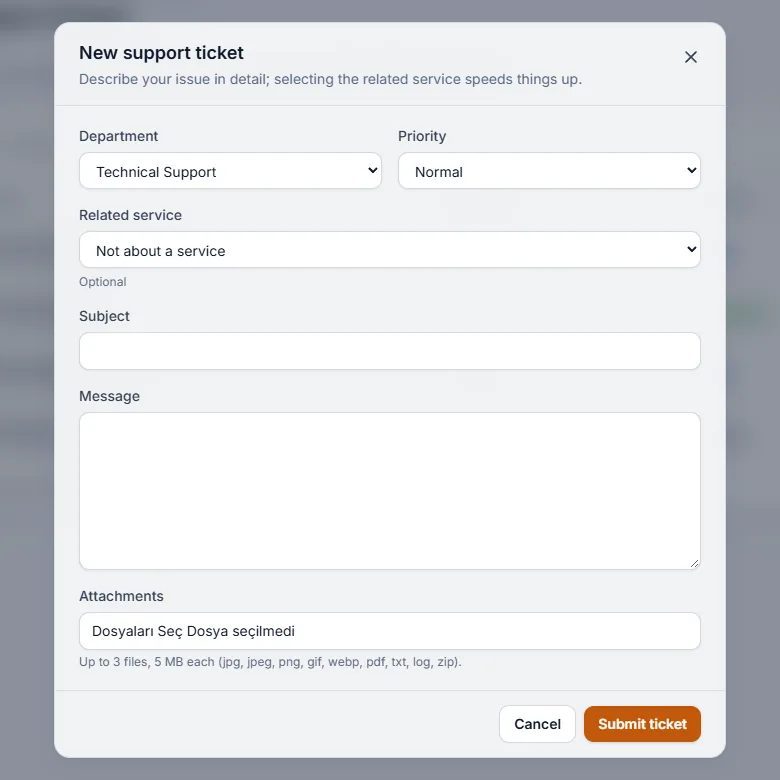
Opening a new ticket
- On the Support tickets page click New support ticket at the top right. If you are on a service page, the Open a ticket button there selects the service for you.
- Choose the Department: Technical Support, Sales or Accounting.
- Set the Priority (usually Normal).
- If a service is involved, choose it from Related service; it helps our team reach the right server or domain quickly.
- Fill in Subject and Message.
- Add files under Attachments if needed and click Submit ticket.
How to write a good ticket
- Say what you were trying to do, what happened and when it started.
- Copy the error message exactly or attach a screenshot.
- Mention the domain, server IP address or service name.
- List what you have already tried so we don’t ask you to repeat it.
- Never write passwords, card numbers or recovery codes; our team will not ask for them.
You can attach up to 3 files of up to 5 MB each (jpg, jpeg, png, gif, webp, pdf, txt, log, zip).
Following your ticket
Each ticket has a number (for example #TKT-2026-000001) and a status: New, Answered, Closed and so on. You get an email when our team replies. From the ticket page you can continue with Reply and, when it is solved, close it with Close ticket. If the problem comes back you can reopen the same ticket.
Live chat and the assistant
- Live chat: the chat button at the bottom right of the site and the panel lets you write your question right away. The AI assistant answers from the knowledge base and, if needed, hands the chat over to our support team.
- Panel assistant: the star icon in the panel’s top bar lets you ask where to do a given action in the panel.
- Phone and email: the numbers and department addresses on the contact page. See the Support experience page for details.