

Building a private homelab on a single VPS: services open only to you with WireGuard
Instead of exposing services to the internet, run them behind a WireGuard VPN: a secure, private lab on one server.
Tutorials · 2 min read

A homelab is a private environment for experiments and personal services. Instead of running a server at home you can use a single cloud server this way. The key principle: don’t expose services to the internet — expose them only to your own VPN. That reduces the attack surface to little more than the VPN port.
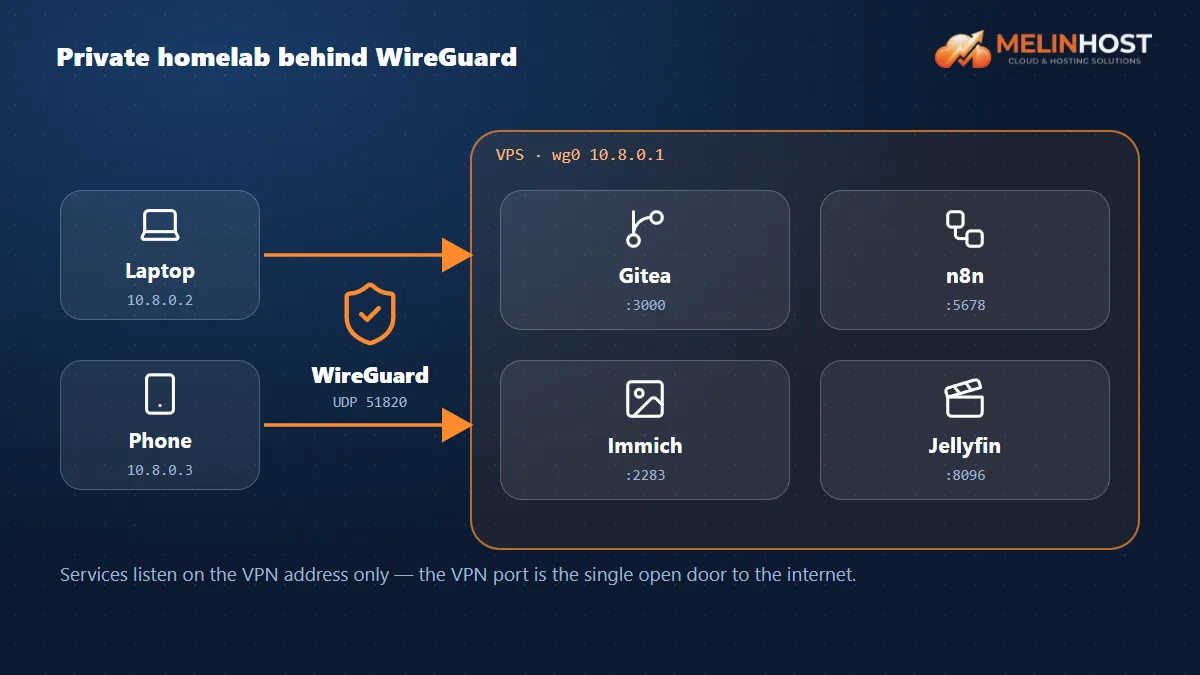
Architecture
- WireGuard: an encrypted private network (
10.8.0.0/24) between your computer, your phone and the server. - Docker: services run in containers (see Installing Docker).
- Binding: ports bind only to the VPN address (
10.8.0.1); they aren’t visible from the internet.
1. Install WireGuard
sudo apt install -y wireguard
cd /etc/wireguard
umask 077
wg genkey | tee server.key | wg pubkey > server.pub
wg genkey | tee laptop.key | wg pubkey > laptop.pub
2. Server configuration
Create /etc/wireguard/wg0.conf (replace the keys with your own values):
[Interface]
Address = 10.8.0.1/24
ListenPort = 51820
PrivateKey = SERVER_PRIVATE_KEY

[Peer]
# laptop
PublicKey = LAPTOP_PUBLIC_KEY
AllowedIPs = 10.8.0.2/32
sudo ufw allow 51820/udp
sudo systemctl enable --now wg-quick@wg0
sudo wg show3. Client configuration
[Interface]
Address = 10.8.0.2/32
PrivateKey = LAPTOP_PRIVATE_KEY

[Peer]
PublicKey = SERVER_PUBLIC_KEY
Endpoint = SERVER_IP:51820
AllowedIPs = 10.8.0.0/24
PersistentKeepalive = 25
Import this file into a WireGuard client (Windows, macOS, Linux, Android, iOS) and connect. If ping 10.8.0.1 answers, your private network is ready. For a phone you can generate the configuration as a QR code.
4. Bind services to the VPN address
Publish Docker ports only on the VPN address:
services:
  notes:
    image: ghcr.io/example/notes:latest
    restart: unless-stopped
    ports:
      - "10.8.0.1:8080:8080"
You reach the service at http://10.8.0.1:8080 only while the VPN is connected. If you like, you can use a domain and HTTPS inside the VPN too with Caddy.
Suggested services
| Service | Purpose |
|---|---|
| Gitea | Private Git repositories |
| n8n | Automation |
| Immich | Photo backup |
| Password manager, notes and file services | Personal use |
Security and maintenance
- Harden the server with the security checklist.
- Create a separate WireGuard key for every device; remove a lost device’s key from
wg0.conf. - Back up configuration and data regularly; take a snapshot before risky updates.
Start with Melinhost
A cloud server is enough for your homelab; full root access lets you configure WireGuard and Docker just as you like.


