

VPS security checklist: 10 steps right after setup
Secure a new server in the first hour: updates, SSH keys, a firewall, Fail2ban, backups and monitoring.
Tutorials · 3 min read

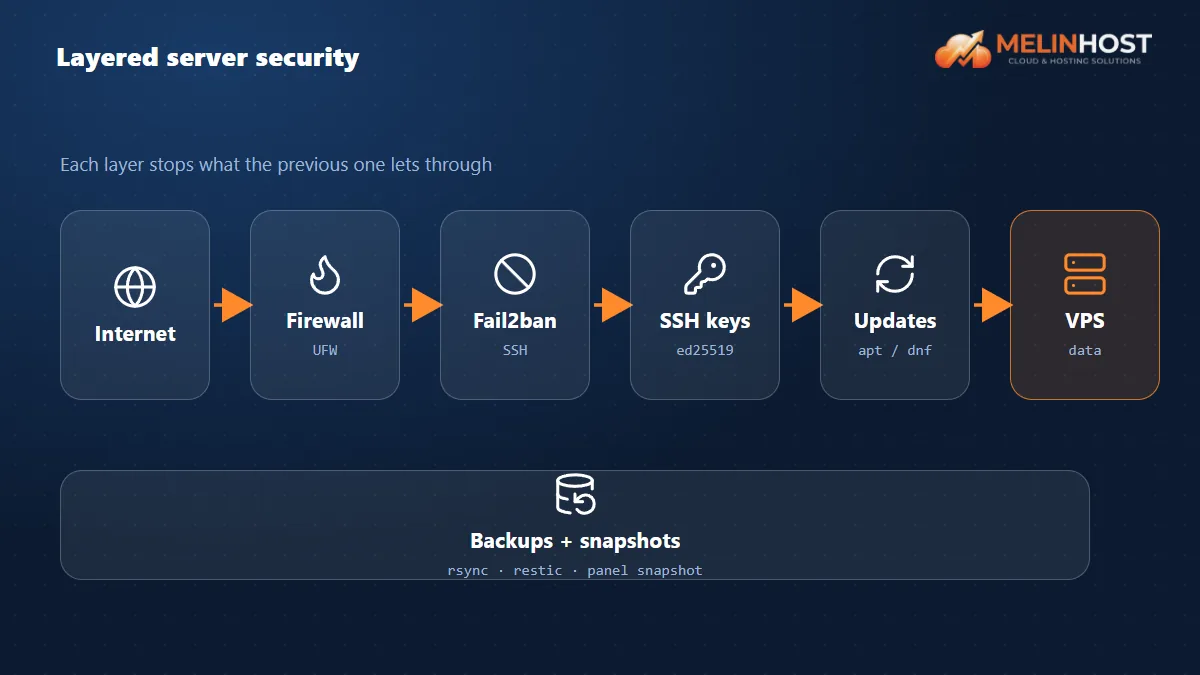
Every server exposed to the internet faces automated scans from the first minute. The good news: a few basic steps neutralise most attacks. The list below is written for Ubuntu/Debian; the equivalents on RHEL-based systems are similar.
1. Update the system
sudo apt update && sudo apt upgrade -yTurn on automatic security updates: sudo apt install -y unattended-upgrades
2. Work as a sudo user instead of root
adduser deploy
usermod -aG sudo deploy
3. Sign in with an SSH key
Create a key and copy it to the server (steps in Connecting with SSH). After confirming key login works, set PasswordAuthentication no and PermitRootLogin no in /etc/ssh/sshd_config and run sudo systemctl restart ssh.
Careful: before disabling password login, always test in a new session that you can sign in with the key.
4. Turn on the firewall
sudo ufw default deny incoming
sudo ufw default allow outgoing
sudo ufw allow OpenSSH
sudo ufw allow 80,443/tcp
sudo ufw enable
5. Stop brute force with Fail2ban
sudo apt install -y fail2ban
sudo systemctl enable --now fail2ban
sudo fail2ban-client status sshd
6. Switch off unnecessary services
List listening services with sudo ss -tulpn; stop and remove what you don’t use. Don’t expose database ports (3306, 5432) to the internet.
7. Watch SSH and sign-ins
Check recent logins with last and failed attempts with sudo journalctl -u ssh --since today. Changing the port adds no real security but reduces log noise.
8. Set up backups
Regularly copy important data off the server (rsync, restic, borg). Take a snapshot from the panel before risky changes; a snapshot alone is not a backup.
9. Time and logs
Confirm NTP is on with timedatectl for correct time. Make sure logs are rotated (logrotate) so the disk doesn’t fill up.
10. Harden the application layer too
- Keep web applications up to date and restrict admin panels by IP or add two-factor authentication.
- If you use Docker, watch the ports you publish (see Installing Docker).
- Keep passwords in a password manager, and turn on two-factor authentication on your account too.
Checklist
| Step | Done? |
|---|---|
| Updates + automatic security updates | ☐ |
| Sudo user, root login off | ☐ |
| SSH key, password login off | ☐ |
| Firewall (only needed ports) | ☐ |
| Fail2ban | ☐ |
| Backups + snapshot | ☐ |
If you suspect your server has been compromised, see What to do if your VPS was hacked.
Start with Melinhost
You can manage our cloud servers from the panel, take snapshots and, when needed, start over with a clean reinstall. Explore our cloud server plans.


