

Creating and restoring snapshots
Take a snapshot of your server before a risky change and roll back within moments if something goes wrong.
Cloud servers (VPS/VDS) · 2 min read
A snapshot is a copy of your server’s disk state at a given moment. Taking one before a risky step — a kernel update, a large software install or a configuration change — lets you return to the previous state quickly if something goes wrong.
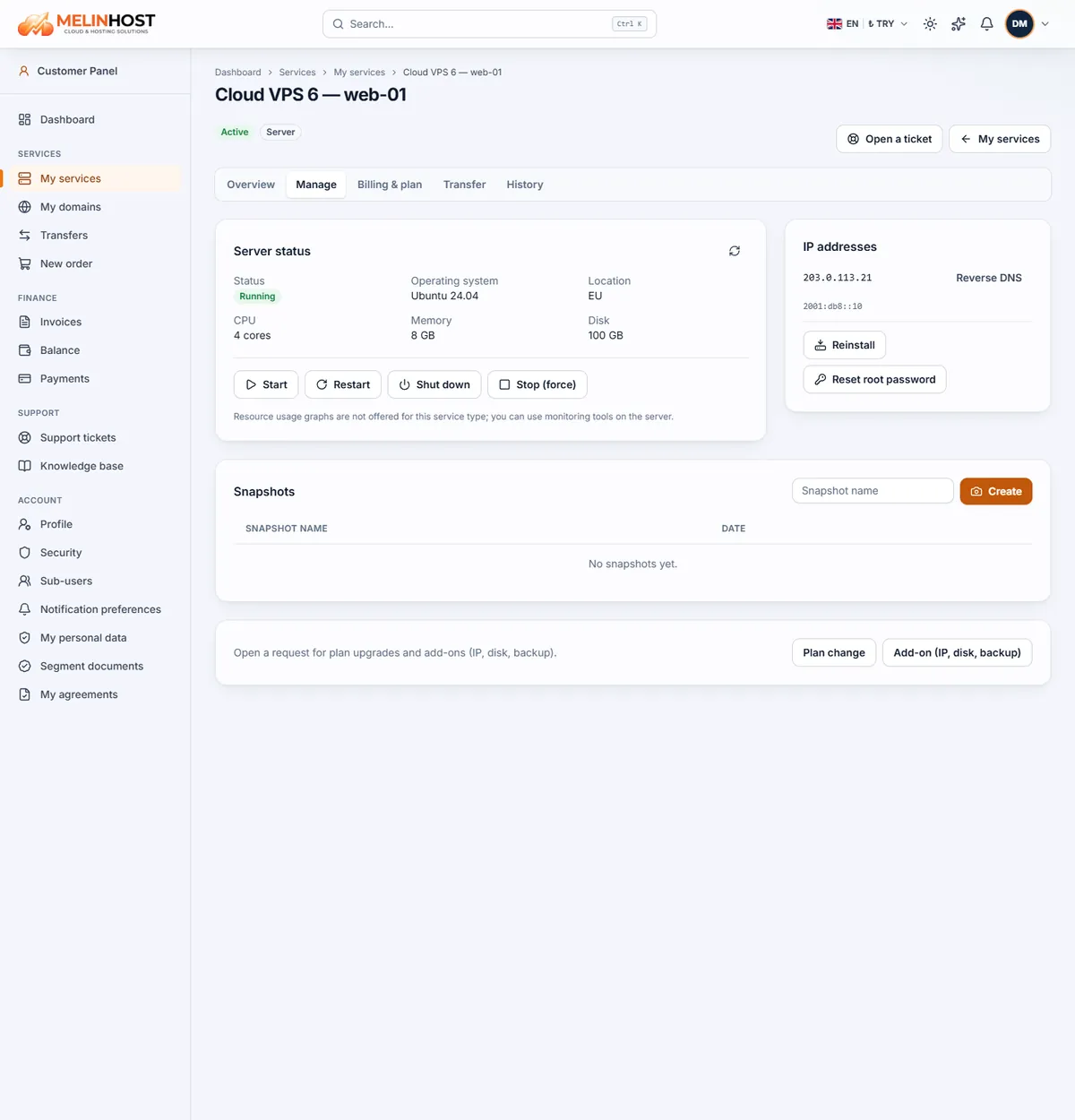
Creating a snapshot
- Open your server from My services and go to the Manage tab.
- In the Snapshots section at the bottom, enter a meaningful name in Snapshot name (for example
before-update). - Click Create. You can follow its status in the list while it is created; your server keeps running.
The number of snapshots included in a plan is limited (it is shown on the plan card, for example “2 snapshots”). When you reach the limit, delete an old one to take a new one.
Restoring a snapshot
- In the list, click Restore on the row of the snapshot you want to return to.
- Confirm. The server is rolled back to the state the snapshot was taken in.
Careful: restoring undoes everything done on the server after the snapshot — files, database records, installations. Copy important data elsewhere before restoring.
Deleting a snapshot
Remove a snapshot you no longer need with the delete button on its row. A deleted snapshot is gone permanently and cannot be recovered.
Good practice
- A snapshot is not a backup: it lives on the same infrastructure. For important data also keep regular off-server backups.
- If a database is busy, briefly stopping the application or database before the snapshot gives a more consistent image.
- Don’t keep snapshots for long; they are meant as a short-term safety point.
If you want to start again from scratch, see Reinstalling the operating system.