

The hosting control panel: signing in and the basics
Sign in to the hosting control panel in one click from the customer panel; upload files, create databases, back up and set the PHP version.
Hosting and email · 2 min read
You manage your website’s files, databases and email accounts from the hosting control panel. You can sign in from the customer panel in one click, without typing a separate username and password.
Signing in to the control panel
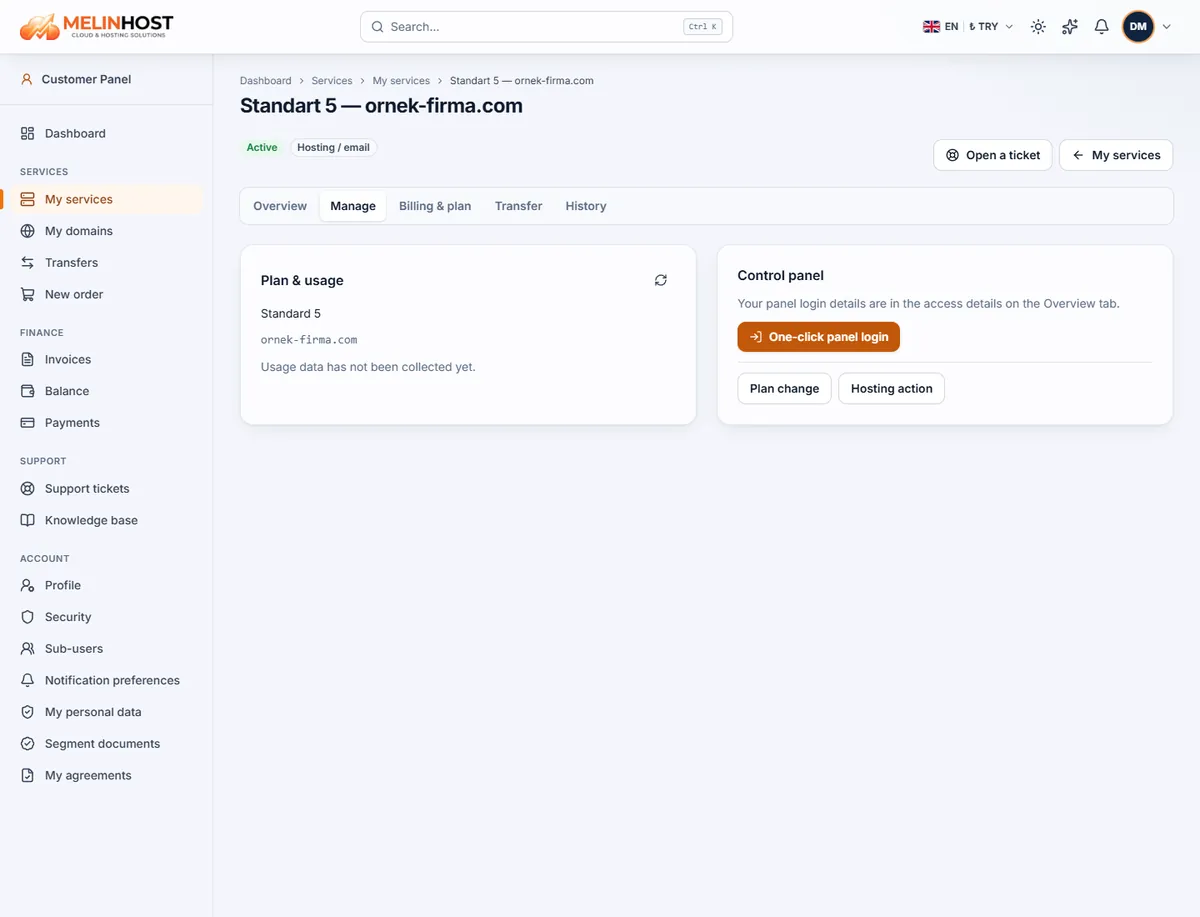
- Open your hosting service from My services and go to the Manage tab.
- In the Control panel box click One-click panel login.
The Plan & usage box on the same tab shows your plan name and your disk, traffic, mailbox and database usage. You can also see your panel login details (username and password) under Access details on the Overview tab; they are needed for direct control panel login and for FTP.
The basics
Uploading files
In the control panel use Files to upload through the browser, or connect with an FTP client such as FileZilla. Your site’s files live in the domain’s root folder (usually httpdocs).
Creating a database
In Databases use Add Database to create a database and a user. Put the database name, user and password in your application’s configuration file.
PHP version and settings
On your website’s management page, use PHP Settings to choose a current PHP version and change settings such as the memory and upload limits. Pick a version your application supports, and use a recent one wherever possible.
Backing up and restoring
- In the control panel open Backup Manager and click Back Up.
- Select website files, databases and email, then start the backup.
- When it finishes you can download the backup from the list. To restore, select a backup and use Restore.
In the scheduled backup settings you can set up daily or weekly automatic backups. Always back up before major changes and keep a copy on your own computer.
Plan changes and other actions
To move to a bigger plan see Upgrading your plan. For anything you can’t do from the panel, create a request with the Hosting action button.