

A tour of the customer panel
The dashboard, the side menu, quick actions and the tools in the top bar: what is where in the panel.
Getting started · 2 min read
When you sign in, the Dashboard opens. It summarises your services, invoices and tickets; the details live on the pages in the side menu.
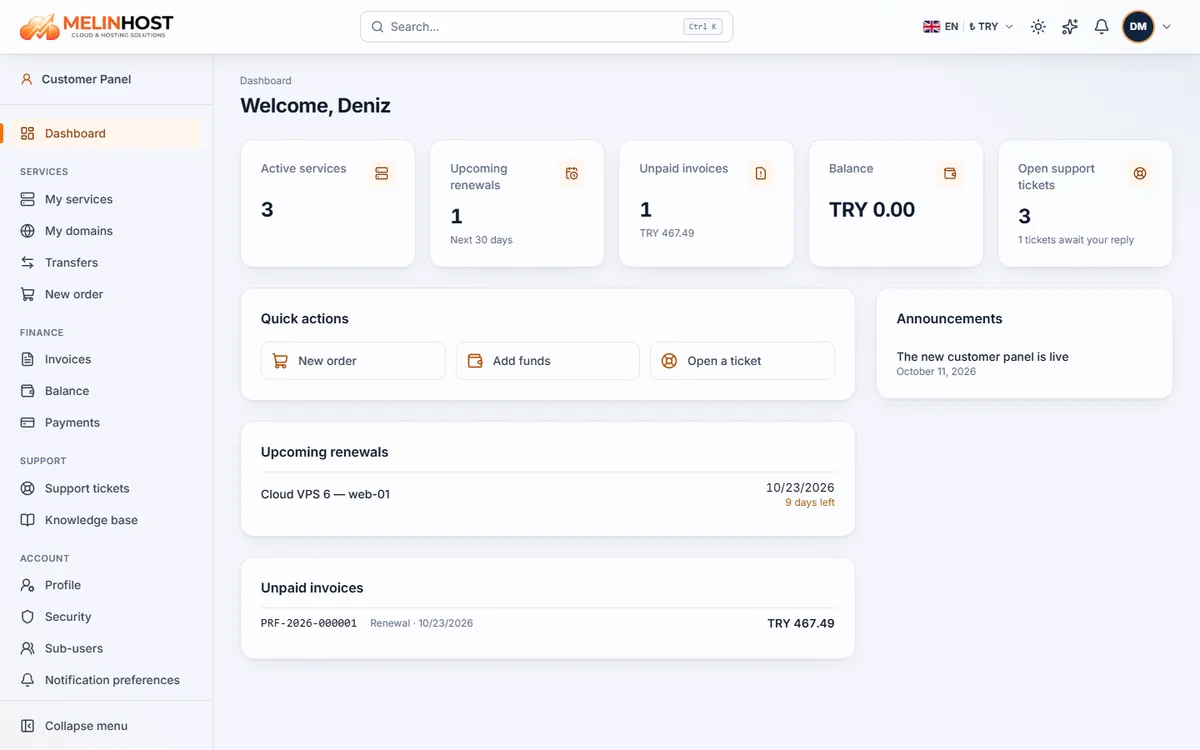
Summary cards
- Active services: the number of running hosting, server and domain services.
- Upcoming renewals: services renewing in the next 30 days.
- Unpaid invoices: the number of pending invoices and their total.
- Balance: the amount available on your account.
- Open support tickets: your ongoing tickets and those waiting for your reply.
Quick actions
The buttons below the cards let you place a new order, add funds or open a ticket. The upcoming renewals and unpaid invoices lists take you to the relevant page in one click.
Side menu
| Section | Pages |
|---|---|
| Services | My services, My domains, Transfers, New order |
| Finance | Invoices, Balance, Payments |
| Support | Support tickets, Knowledge base |
| Account | Profile, Security, Sub-users, Notification preferences, My personal data, Segment documents, My agreements |
The Collapse menu button at the bottom shrinks the menu to icons.
Top bar
- Search (Ctrl K): quickly finds services, invoices, tickets and pages.
- Language and currency: switches the interface language (Turkish, English, Russian) and the currency prices are shown in.
- Theme: toggles between light and dark mode.
- AI assistant: a helper you can ask where to find a particular action.
- Notifications and profile menu: recent events and account actions.
If you can’t find an action, type it into the search box or look in the knowledge base.