

Searching for and registering a domain
Check whether a domain is available, compare extension prices, add it to your cart and complete the registration.
Domains and DNS · 2 min read
Choosing a domain for your website, email and brand is the first step. Everything about domains is under the Domains menu.
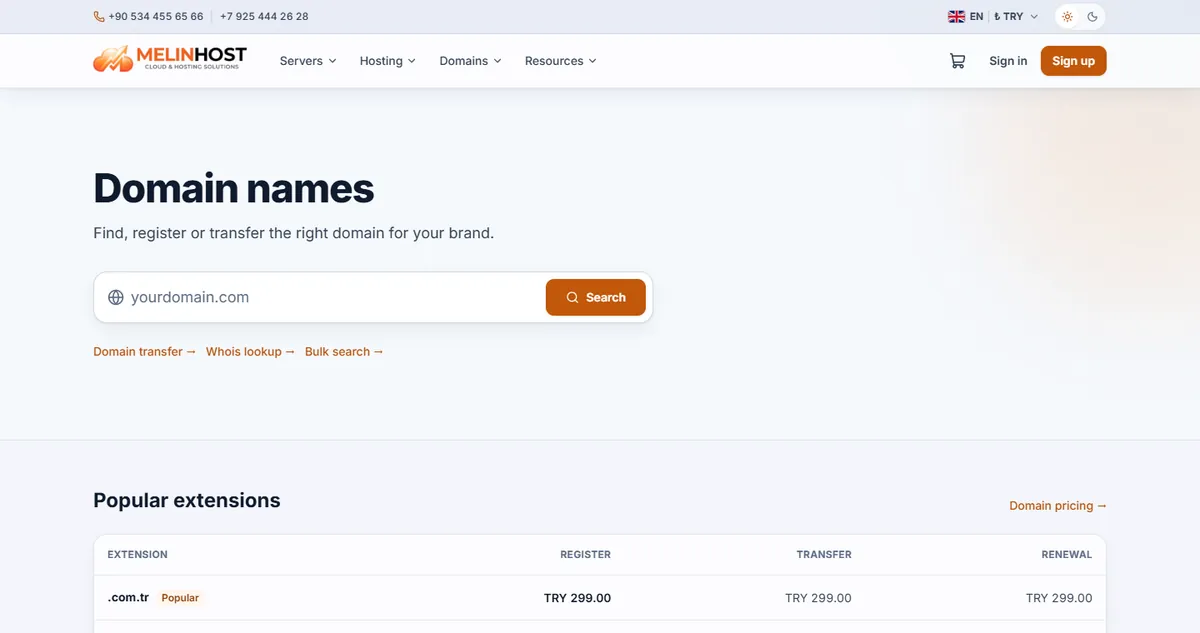
1. Search for the domain
- Open Domains › Domain search from the top menu, or use the search box on the home page.
- Type the name you want (for example
yourbrand) and click Search. To try several names at once, use the bulk search link. - The results show whether the extensions you picked (
.com,.com.tr,.netand so on) are available, and the registration price.
You can compare registration, transfer and renewal prices of extensions on the Pricing page. The renewal price can differ from the first-year price, so look at all three.
2. Add to cart and pay
- For an available domain click Add to cart and choose the registration period.
- Open the cart, sign in and choose a method at checkout (see Payment methods).
- When payment is confirmed the registration starts; the domain shows up on your My domains page shortly afterwards.
Tip: the domain owner (WHOIS) details come from your billing details; keep them accurate and current. Wrong details can cause problems later with transfers and verification (see Profile and billing details).
After registration
- To connect the domain to a website, set the nameservers and DNS records.
- To move a domain from another provider to us, see Transferring a domain.
- To avoid missing the renewal date, keep Auto-renewal on (see Renewal).
To see who owns a domain or its registration details use the Whois lookup page.